Last updated on August 25th, 2026
Komga is self-hosted media server software for ebooks and digital comics/manga. I’ve been using it to host my own comics and ebooks. I do use Jellyfin, which offers similar features; unfortunately, I don’t feel Jellyfin is as good as standalone software geared specifically toward ebooks/comics.
For some reason, the state of self-hosting ebooks/digital comics doesn’t seem as strong as that for TV shows and movies. (Maybe Kindle’s dominance and digital rights management (DRM) make self-hosted alternatives less popular? Or that fewer people read comics versus watch TV/movies?) Still, Komga is one of the more prominent options I’ve found, along with two other popular ones, Kavita and Calibre-Web. While I use Calibre to remove DRM from ebook purchases, it doesn’t seem to handle comics as well. Kavita is harder to install on a Mac (what I use for a media server) than Komga; Kavita requires using Docker. Komga installs just like most other MacOS software: download Komga as a DMG disk image; open the DMG disk image; drag and drop Komga into the Applications folder; and then launch Komga (via the menubar icon) to run the setup in a browser. Like Jellyfin, the Komga server’s accessed via a local IP address/localhost, though I assume more technically-ambitious people can access it from an outside network.
Basics
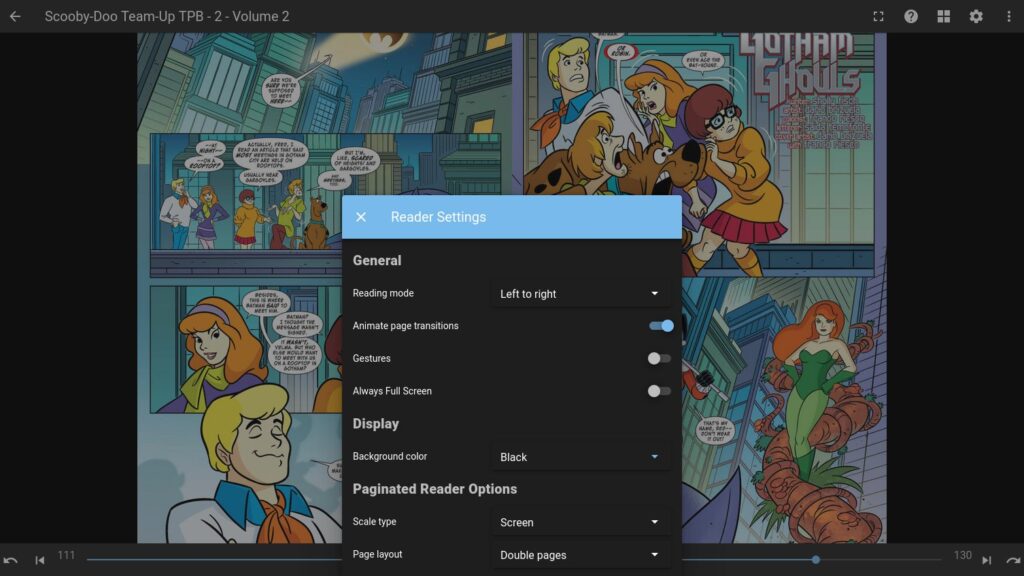
Komga allows access through a web browser, and thus is available on any platform. There’s support for all of the popular ebook/digital comic file formats: EPUB, PDF, CBR, and CBZ. All books are organized as “series” by default, even for single standalone books.
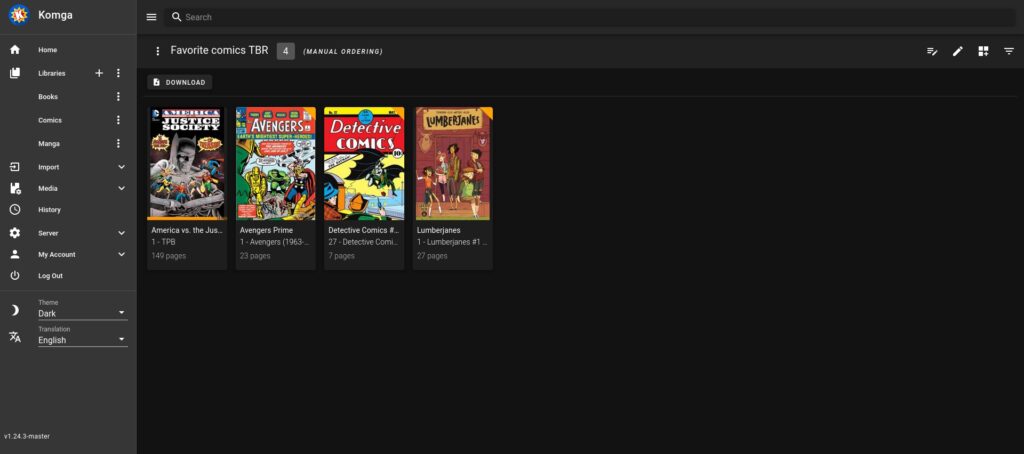
Like Jellyfin or Plex, one can make collections and reading lists based on any desired criteria; however, collections only apply for series, not individual books. Thus, you can make a To Be Read (TBR) list for things such as new books, Christmas stories, etc., or collections for series such as Superman comics.
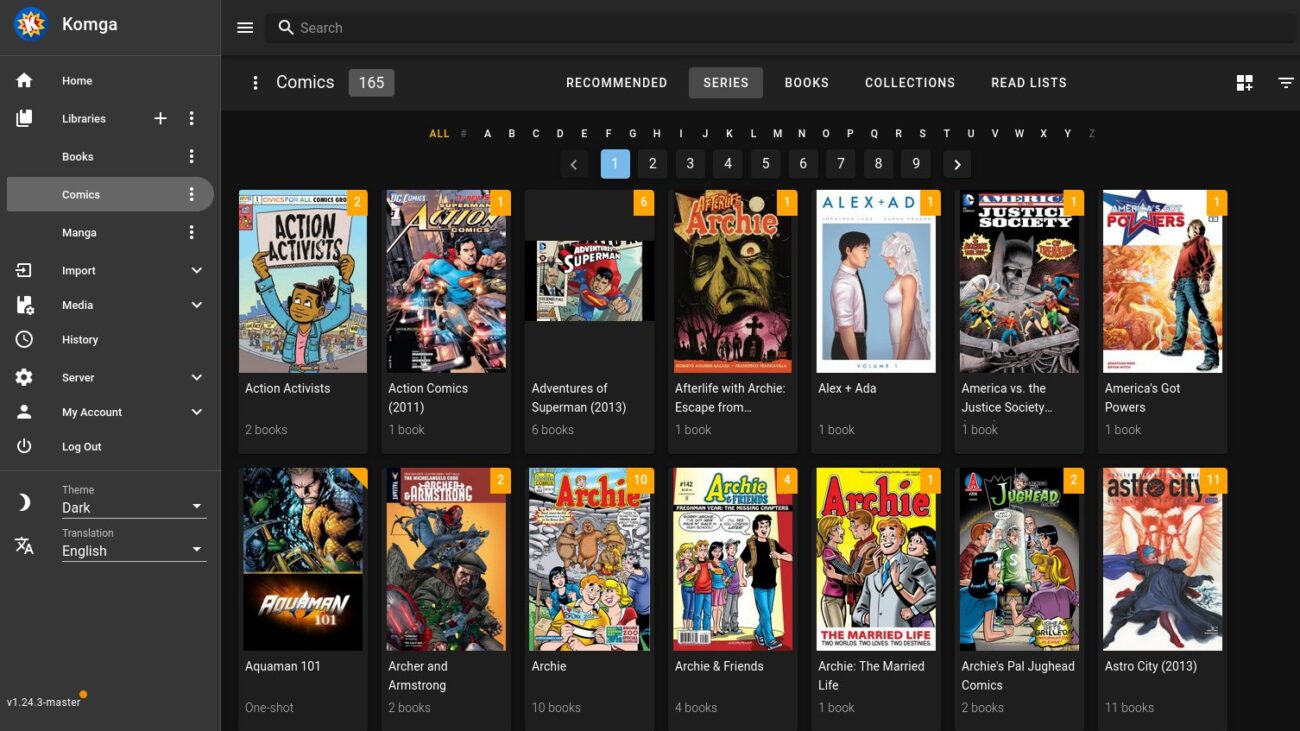
Similarly, you can organize books under as many libraries as you wish. In my case, I use three separate libraries: “comics,” “books,” and “manga.” The default home screen shows all of the libraries together, but they can be accessed separately from the sidebar.
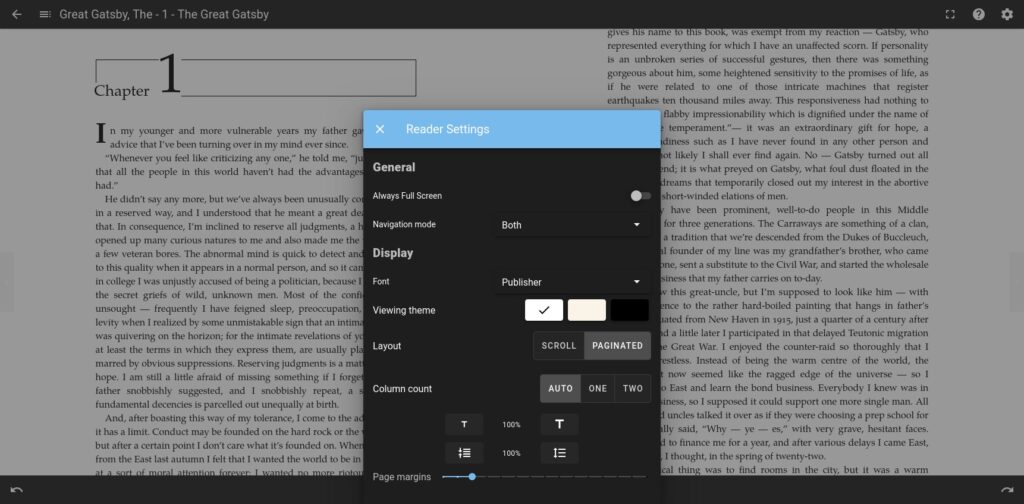
Right-to-left reading is supported by Komga, which obviously is useful for reading manga. For ebooks, sepia and dark modes are available, as well as adjusting the font and column sizes.
Pros and cons of Komga
As I noted before, one of Komga’s strengths is that it’s easy to install and set up, compared to its alternatives. It’s also easy to use. Reading progress is also tracked across devices, which is convenient.
Among the downsides, Komga doesn’t come with its own app; thus users will either have to use it via its web browser interface or a third-party app. Komga does support OPDS, so it can be used on any apps that support such. Unsurprisingly, third-party app support is stronger on iOS than Android—on iOS, the Panels app does an excellent job for reading DRM-free digital comics, and works with Komga. As I’m on Android, the app situation’s weaker, but Komelia is what I use with Komga for comics/ebooks.
Komga can also pull in metadata from EPUB files, as well as CBR/CBZ files with ComicInfo.xml files embedded. There’s also basic metadata editing available within Komga. Third-party metadata editing/importing programs are available for CBR/CBZ files (which mostly work by pulling info from Comic Vine or Grand Comics Database), though some of these programs can be hit and miss. (A lot of similarly-named superhero series or online info being scarce for more obscure series doesn’t help.) Calibre can update metadata in EPUB files, of course.
As Komga is more geared toward comics/manga, ebook support might not be quite the same as that for Kavita or Calibre-Web. One sign is the fact Komga treats even prose ebooks as “series” (similar to comics).
I wouldn’t mind seeing Komga add a rating feature like Calibre offers: the ability to rate a read book by number of stars. The closest best option I’ve come up with is adding separate stars (via emojis) as tags, and choosing the desired tag (“1 star” to “5 stars”).
Finally, Komga only works on DRM-free files, which you’ll have to acquire on your own. Fortunately, DRM-free comics and ebooks are available.
Conclusion
Komga is a pretty decent and easy to use self-hosted media server program. While it’s not as slick as other alternatives, and lacks its own dedicated app, Komga works well at what it does.
Image: Komga’s main comics page. (Screenshot by author)
