Last updated on September 1st, 2026
A few years ago, I wrote a few posts about Jellyfin, an open source media server. However, there’s recently been a rise in interest in self-hosting media, with YouTube videos about such (fancy network attached storage (NAS) setups and all). I thought I’d expand on that, and write an updated post on running a basic Jellyfin media server.
Note I’m mostly focused on TV shows and movies. However, Jellyfin also supports music, as well as a few other options, such as DRM-free comics/ebooks. That said, for comics and ebooks, I recommend Komga, Kavita, or Calibre. In my case, I use Jellyfin for movies, TV shows, and music; for comics and ebooks, I’m currently using Komga.
Installation and setup
Jellyfin has its own installation instructions for each major operating system:
After installation, to access the setup assistant, enter into your browser “http://localhost:8096” or “http://<localhost IP number>:8096.” Follow the prompts to finish setting up Jellyfin.
Plugins
Jellyfin offers numerous plugins to increase its functionality. However, some of them don’t work with Jellyfin’s official media apps, particularly ones that change aspects of the layout. (They work fine with browser-based Jellyfin access, however.) I also ran into some plugins that were primarily created using AI, which I view as an automatic “no.” (Jellyfin’s outlined its policies regarding AI here, but basically, they take a dim view on “vibe coding” and the like.)
Here’s a few useful plugins that come with the default Jellyfin repository:
- TVDB: I recommend adding this one before adding TV shows, as it lets Jellyfin do a better job at pulling in TV metadata. (While I linked to the Github page, it already comes with the default Jellyfin plugin options.) Adding TV shows is a bit more finicky than movies, given there’s more details to account for: broadcast order versus DVD order; season and episode naming of multiple files; multipart episodes; unusual program formats (cartoons with two 11-minute episodes forming a half-hour, such as “SpongeBob SquarePants”); etc.
- Fanart: This plugin lets Jellyfin pull in a bigger variety of artwork, including logos, posters, etc.
- TMDb Box Sets: This option lets Jellyfin automatically assign related movies and TV shows to a box set collection, such as “Star Trek” or the Marvel Cinematic Universe. I prefer to make collections by hand (and I guess I’m pickier about what gets added as a collection), but some might find this plugin useful.
For the more adventurous, or wanting third-party options, the Awesome Jellyfin Github page lists the most popular Jellyfin plugins, as well as other third-party software (themes, etc.).
Metadata and artwork
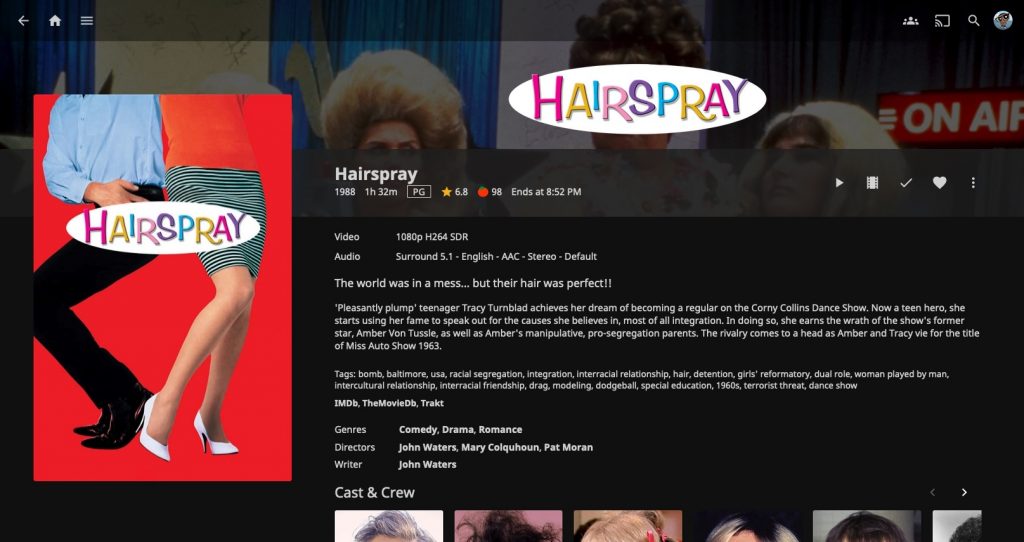
After adding media, I recommend going in and checking to make sure the movies’ and TV shows’ metadata is correct.
I also suggest checking to make sure added artwork, including TV show logos, poster art, etc. are either correct or the desired artwork. It also helps to make sure library settings default to your preferred country and language. I’ve had to adjust a few TV shows and movies for which Jellyfin pulled in non-English language logos; sometimes it’s because there’s no English language one, but other times it’s clearly just a mistake. I’ve found a few Looney Tunes cartoons and a Barbie movie with logos in Spanish or Portuguese, for instance.
In case of more customized or finicky metadata changes, it might help to check the “lock this item to prevent future metadata changes” under “edit metadata.” That way, future rescans won’t change the TV show or movie in question.
Naming movies and TV shows
Jellyfin recommends properly naming files before adding them to your servers. For TV shows, you may have to go into the library settings and change the episode order settings from “air date” to “DVD” (or vice-versa).
As for how to name files, Jellyfin has instructions for:
But basically, for movies, the directory structure is (for example) “Movies” > “Back to the Future (1985)” > “Back to the Future (1985).mp4.” The same for TV shows: “TV Shows” > “The Scooby-Doo Show” > “Season 01” > “The Scooby-Doo Show – S01E04 – Watt a Shocking Ghost.mp4” (plus the other episodes in that season of the show).
Naming/organizing Looney Tunes (and other animated shorts)
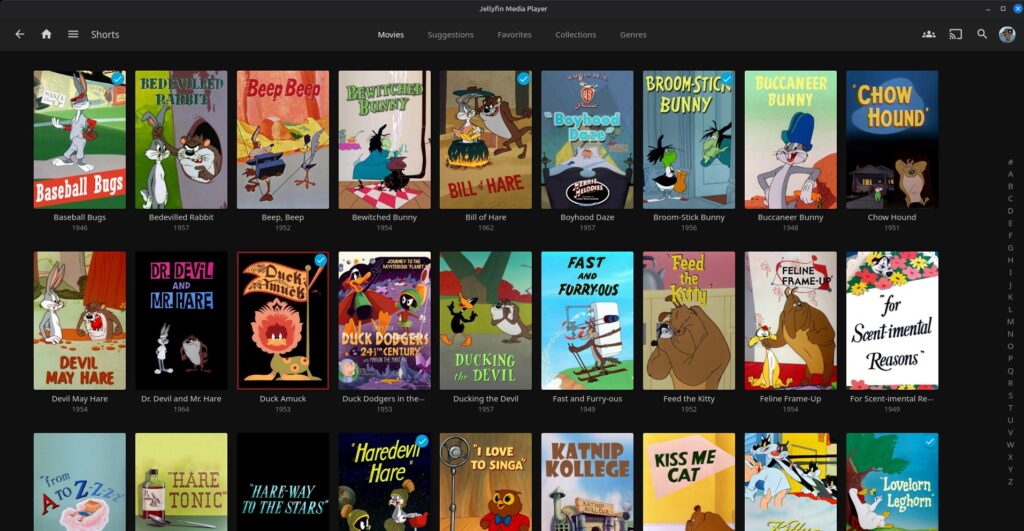
I suggest adding a separate “Shorts” library for Looney Tunes (as well as Tom and Jerry and similar Golden Age animated shorts), and setting the library format as “Movies.” (Another option is putting each franchise into its own separate library.) This not only keeps them separate from other types of content (particularly TV shows and feature films), but also makes metadata identification much easier. If going for a general “Shorts” library, the shorts for each studio or franchise can then be put into a collection or playlist. In my case, I have a “Shorts” library, as well as collections for Looney Tunes, Disney shorts, and Woody Woodpecker.
Why this way? Despite television being the only way most people have seen these, Looney Tunes (as well as the other Golden Age cartoons) are animated theatrical shorts, not TV shows. Looney Tunes shorts were initially released to movie theaters (running before a main feature film) between 1930 and 1969—a run lasting from the early Depression to the “flower power” era. Most of the problems people online seem to have adding Looney Tunes to Jellyfin (or Plex) come from trying to treat them as TV shows with ersatz “seasons” (by release year). It’s easier to just treat them as the animated short subjects that they are. As such, for naming these shorts, it’s the same as for movies: “Knighty Knight Bugs (1958).mp4,” “Stop Look and Hasten (1954).mp4,” “Ducking the Devil (1957).mp4,” etc.
Hiding Christmas films after the holidays
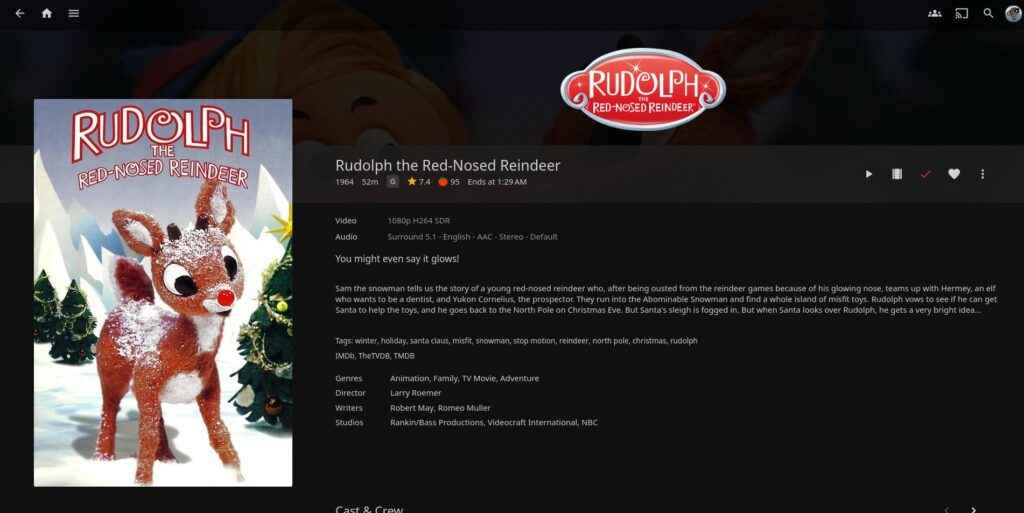
Another option is creating a separate library (and their own directory) for holiday movies. Basically create “Christmas movies” as a directory, put said films and TV specials (Frosty, the Grinch, “A Christmas Carol,” etc.) there, and set up a “Christmas movies” library. When it’s no longer December, you can go into Jellyfin’s Dashboard > Libraries, select “Manage library” from the “Christmas movies” library’s drop-down menu, and then deactivate “Enable library.” When next November or December rolls around, you can go back in and re-activate the library. This way, the files are hidden from Jellyfin for the rest of the year, saving you from scrolling past a ton of Christmas films in, say, April.
You can also do the same for other holidays you might have a lot of movies/TV specials for, such as Halloween or Easter. However, Christmas seems to be the biggest generator of such movies (see: the Hallmark Channel).
I set up separate libraries for Christmas and Easter specials, as well as Halloween and even Thanksgiving. For now, I’ve left the other holidays (like Valentine’s Day) as-is within the main movies library.
If wondering, for the numerous Christmas episodes of otherwise regular TV shows, I made a playlist with all of those (named “Christmas TV episodes”).
Replacing videos
For my setup, I found that replacing a file with a different version (say, replacing a standard definition movie with a high definition version) caused fewer problems with Jellyfin if I delete the old file from within Jellyfin first, and then add the new file. (Also a reminder to keep backups before deleting anything.)
Collections and playlists
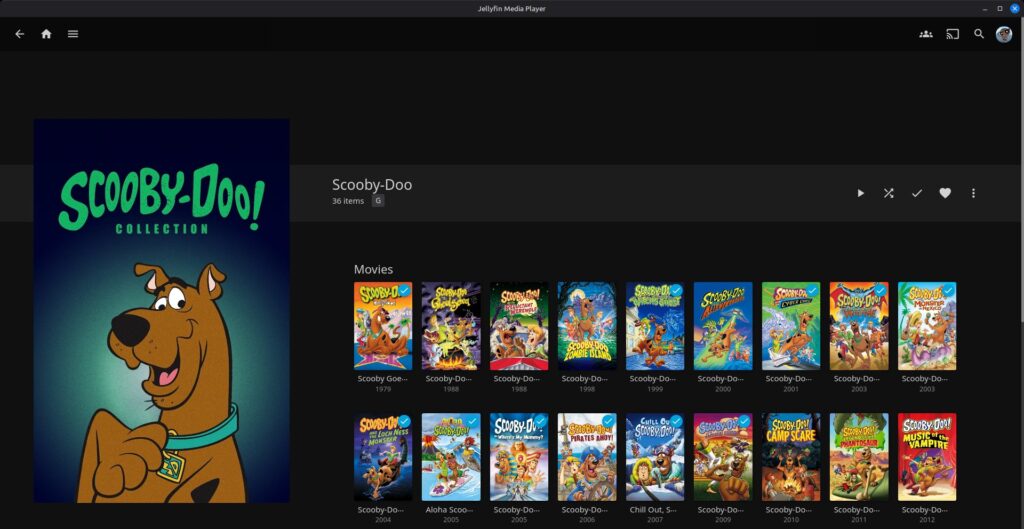
Collections and playlists are useful ways to organize Jellyfin movies and TV shows. Collections can be used to organize in one spot, say, all “Star Trek” TV shows and movies, or similar themes such as Christmas movies. Meanwhile, playlists can be used to organize media along similar themes, but in whatever play order one wants. Since Jellyfin is your own personal “Netflix,” you can organize collections and playlists however you want.
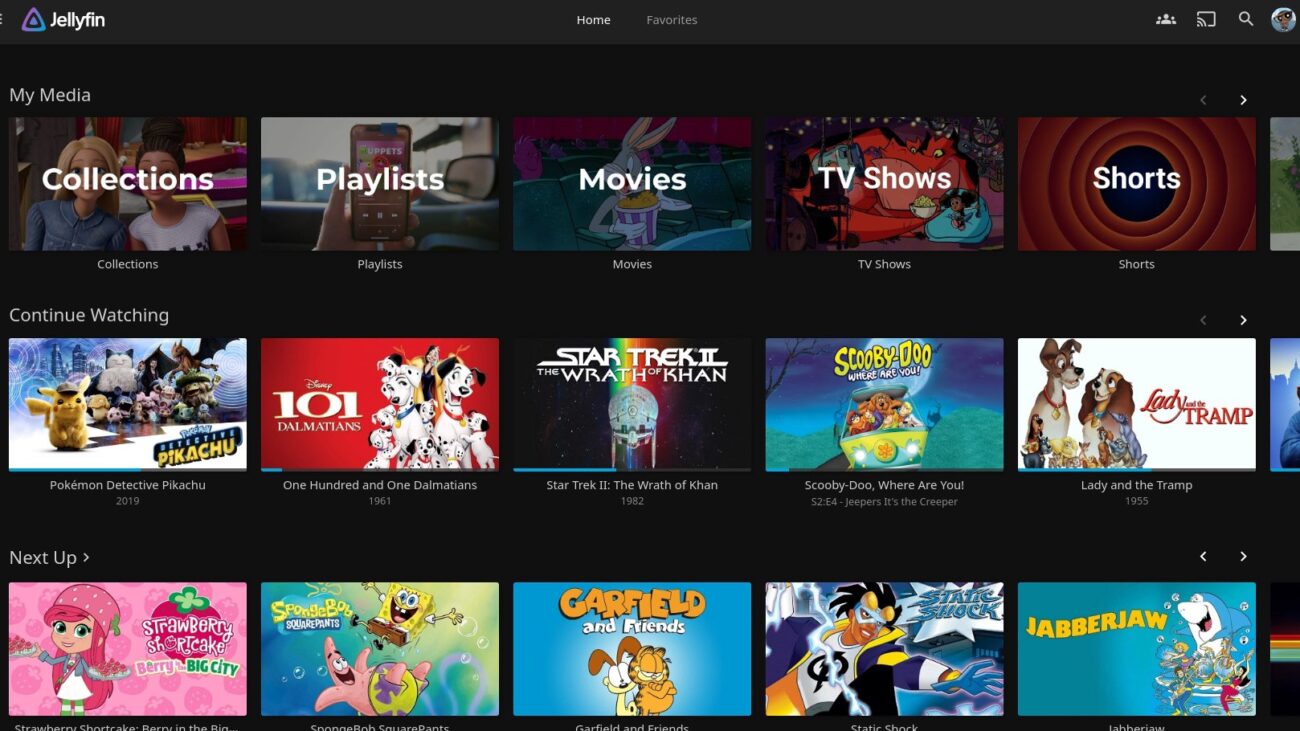
I’ve used collections to organize franchises: DC Comics superhero movies/TV shows, Looney Tunes, etc. I’ve also created “Boomerang” and “Nickelodeon” collections (the former serving for Hanna-Barbera fare). If wondering, I found the “Scooby-Doo Collection” poster in the image above on The Poster Database site.
Initially, I just used playlists for music, but lately I’ve found them useful for TV show and movie themes that don’t feel like they belong in collections: Olympics-themed TV show episodes, holiday episodes of TV shows, and Oscar-nominated animated shorts. (Collections can also have individual TV show episodes, but playlists seem to handle such better.)
External access through Tailscale

One of Plex’s strengths is that it’s easy to share a server to others, or access it from outside of your house. Since everything about Jellyfin is self-hosted, that makes such harder, especially for less technically inclined users.
Fortunately, there’s one option that makes things easier. Tailscale is a virtual private network (VPN) service that offers a free tier that’s cross-platform, including mobile devices and Linux. Installation and setup is pretty simple; afterwards, you enter the Tailscale IP address into your Jellyfin app, allowing you to access your server from anywhere.
Image: My Jellyfin main page. (Screenshot by author)
Related Posts




A lot of useful advice here; thanks!
In my setup, I treat the Jellyfin directories as ephemeral. I run it on Linux in a docker container, and I run a daily cron script that scans the file systems on several different NFS servers to find all my video files, then uses a local postgresql database with the IMDB data tables to regenerate the Jellyfin directories, using hard links to the original video files and naming the links in the way Jellyfin prefers.
Whenever I add new videos to my collection, I also add their filenames to a PSV metadata file that maps the filenames to their corresponding IMDB tconst id. The next time the cron script runs, they get automatically added to Jellyfin.
You’re welcome! My setup’s pretty basic in comparison to yours, but it works?